What is a Problem?
- ITIL defines a problem as “a cause or potential cause of one or more incidents.” Whereas an incident is a single unplanned event that causes a service disruption.
- End goal is to proactively prevent incidents from occurring or to find the root cause of a disruption, and prevent incidents from happening again.
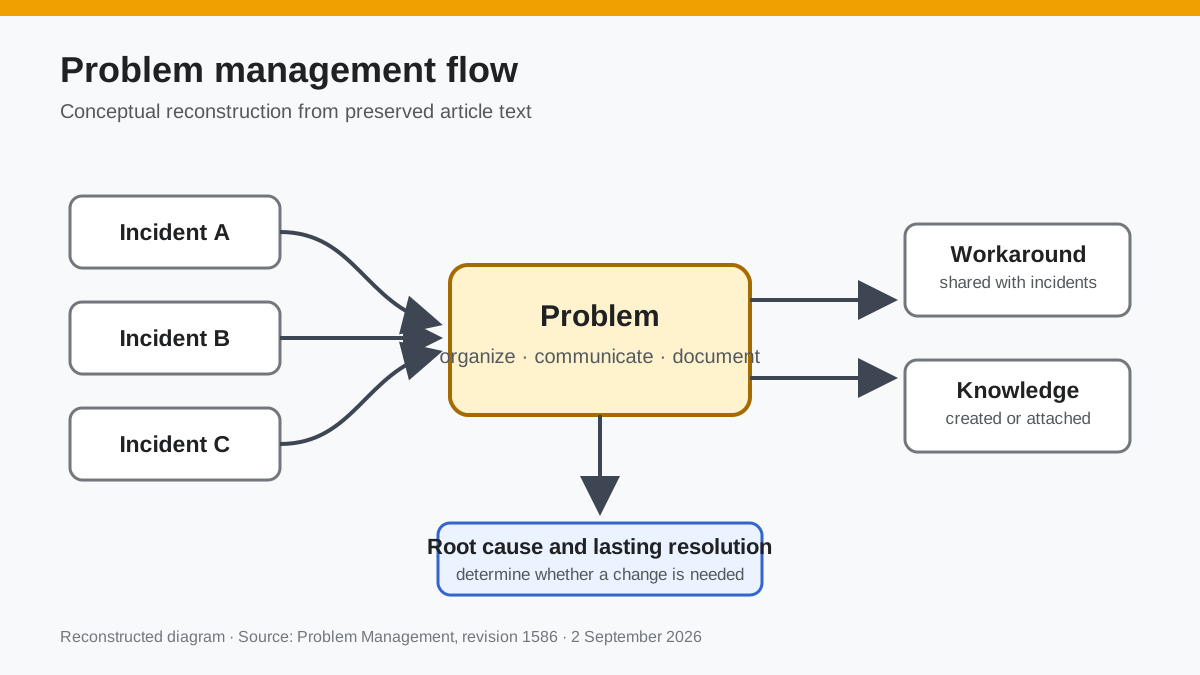
- Connects multiple incidents to one root problem to better organize a solution.
Problem vs Incident
- The goal of incident management is to restore the service as quickly as possible Vs. Problem management's goal is to identify the root cause of the incident(s) and determine if a change is needed or a work around should be communicated.
- An incident's solution may use a problem's work-around to help restore the service as fast as possible, whereas a problem's solution seeks to restore the service in the correct way regardless of time.
- A problem can consist of multiple incidents or just a single incident.
Problem functionality
Problems are a great way of organizing, communicating, and documenting solutions to multiple disruptions in a service.
Let's go through some of the ways it does that:
Creating a Problem
... ... ... ...
Attaching Incidents to a Problem
To attach incidents to a problem, you'll need to add an Incident relationship. Select the Relationship Editor on your Problem record and add 'Incident'.
 Documentation image “AddingIncidentToProblem_1.jpg” is unavailable.
  Documentation image “AddingIncidentToProblem_2.png” is unavailable.
 Next, select all Incidents that stem from the known problem. You may also open individual Incidents on this slide-out to make sure you're grabbing the right one.
 Documentation image “AddingIncidentToProblem_3.png” is unavailable.
  Documentation image “AddingIncidentToProblem_4.png” is unavailable.
 Once you have the Incidents listed on the right side of your Problem record, save the record at the top right of your screen and you should see the Incidents be added to your Problem's chat box.
 Documentation image “AddingIncidenToProblem_5.png” is unavailable.
 Your Incidents will all receive a new chat message on their internal chat record, allowing anybody working on the Incidents to see the Problem they have been attached to.
 Documentation image “AddingIncidentToProblem_6.png” is unavailable.
 Sharing a work-around with attached Incidents
In order to restore service for all customers quickly and efficiently, sharing a work-around to all the Incidents related to the problem can provide a needed work-around solution.
You can do this by editing the 'Work-Around' slot located on the right side of the Problem record.
Hover over it and select the pencil icon:
 Documentation image “AddingWorkaroundToProblem_1.png” is unavailable.
  Documentation image “AddingWorkaroundToProblem_2.png” is unavailable.
  Documentation image “AddingWorkaroundToProblem_3.png” is unavailable.
 Now that your workaround is posted, any incident will be able to click on the Problem their Incident is attached to, and see the work-around.
What if you wanted to make sure everyone got the message right away?
Using Broadcast Message
- Used to send a message to any selected relationship attached to the Problem.
- Sends the message to the public chat of all the records given in relationship.
- Can be used to communicate a number of things such as workarounds or if the root cause is being worked on.
For example, we will broadcast a message to all Incidents on a problem. Click on the radio tower icon on the top right of your Problem record:
 Documentation image “BroadcastingMessageProblem_1.png” is unavailable.
  Documentation image “BroadcastMessageProblem_2.png” is unavailable.
 Select which relationship you would like to broadcast to:
 Documentation image “BroadcastingMessageProblem_3.png” is unavailable.
 Confirm you want to broadcast the message, and your message will be sent to all records within the chosen relationship!
 Documentation image “BroadcastingMessageProblem_4.png” is unavailable.
 User Involvement
The assigned user on a Problem can involve people on the record for various reasons. This is helpful for:
- Correct Vendor information
- Monitoring progression on a Problem
- Assisting an assigned user
Involving People In A Problem
There are two ways of involve other users:
- Through a @ mention message on the record
- Add person button on the top right of the record
@ Involve Message
- Involves users and automatically assigns mentioned user to an 'Assisting' role.
Type '@' in your message input box and an autofill box will pop up:
 Documentation image “IncludingProblem_1.png” is unavailable.
  Documentation image “IncludingProblem_2alt.png” is unavailable.
 Now, you should see the involve message in the chat, the user listed in the top right under 'Involved', and the user listed under 'Assisting' on the right bar:
 Documentation image “IncludingProblem_3alt.png” is unavailable.
 Add Person Button
- Involves users and manually assign users to roles
Click on the 'Add Person' button at the top right of your page:
 Documentation image “IncludingAddProblem_1.png” is unavailable.
  Documentation image “IncludeAddingProblem_2.png” is unavailable.
  Documentation image “IncludeAddingProblem_3.png” is unavailable.
  Documentation image “IncludeAddingProblem_4.png” is unavailable.
 Save and confirm back down to the Problem record. You will see newly added information to the record:
 Documentation image “IncludeAddingProblem_5.png” is unavailable.
 Removing Involved Users
There are two quick ways of removing a user:
1)
 Documentation image “RemoveIncludeProblem_1.png” is unavailable.
 2)
 Documentation image “RemoveIncludeProblem_2.png” is unavailable.
 Knowledge
- You can attach Knowledge to your Problem to add more information related to the Problem.
- The Problem's status must be closed for you to create a new Knowledge article.
- This will be helpful if you have had a similar Problem or Incident in the past that has been resolved and added to the Knowledge database.
Creating Knowledge
Once your Problem has a status of closed, select 'Create KB Article' at the top right of your Problem slide-in.
 Documentation image “AddingKBProblem_1.png” is unavailable.
 Confirm, you will be asked if you'd like to include important messages. This will go through the problem chat, grab any messages marked as important, and list them in your Knowledge article.
 Documentation image “AddingKBProblem_3.png” is unavailable.
  Documentation image “AddingKBProblem_2.png” is unavailable.
  Documentation image “AddingKBProblem_4.png” is unavailable.
 After creating the Knowledge article, a relationship on both the Knowledge and the Problem will be created, linking the two together.
Attach Existing Knowledge
To attach existing Knowledge to your Problem, select your Problem's 'Relationship Editor' at the bottom right of the slide-in.
 Documentation image “AddingExistingKBProblem_1.png” is unavailable.
  Documentation image “AddingExistingKBProblem_2.png” is unavailable.
 From here, you will select the Knowledge article you'd like to attach. It will slide-in again, showing you the Knowledge you have selected. Confirm, then your Knowledge article will be attached to your Problem.
 Documentation image “AddingExistingKBProblem_4.png” is unavailable.
 Reconstructed diagram
Reconstructed diagram: a conceptual visualization of the process described on this page.