Change Management is used to document any changes to any configuration.
- Changes to any configuration are approved and seen by multiple people, ensuring accurate and precise changes to be made.
- Documents changes that may be difficult to understand or configure without context/documentation.
- Helps organize a plan(s) for any scenario after a change (e.g. service malfunction).
- Risk assessment and scheduling to execute changes appropriately without conflict(s).
Normal Request For Change (NRFC)
- Blank request to be filled in with specific information
- Not pre-approved
- Used for changes that may present some risk, approval/second eyes is needed
Creating a NRFC
First, navigate to your ITSM bundle, then to the 'Change normal' tab on the left. Then, click the add row button at the top right.
 Documentation image “AddNormalChange_1.png” is unavailable.
 Details
The first page you will see is the Details page of your new NRFC. Here you can determine:
- Who will execute the change
- Planned start date, and expected duration
- Which category best fits the change request
- What goal will the change achieve
You will also see two switches for Has risk and Financial Impact. Select these if your change will have any risk or has an association with financial performance.
 Documentation image “AddNormalChange_2.png” is unavailable.
 People and CIs
In People and CIs, add in any Configurable Item (CI) that will be changed or affected. This helps connect malfunctions or unexpected behavior with related CIs. You can also add new people to help assist, watch, or lead. This may be a vendor as well.
To learn more about CIs, check out the CMDB wiki article.
 Documentation image “AddNormalChange_3.png” is unavailable.
 Risk
If you selected Has risk from the Details Tab', you will have the Risk tab appear.
Here you can set a risk level of 1-9; 9 being critical/a high chance of something being disrupted, whereas 1 is minimal.
Risk Assessment is a detailed description of why and how the change poses a risk.
Risk Management Plan is a detailed description of how risk will be reduced/managed.
 Documentation image “AddNormalChange_4.png” is unavailable.
 Financial Impact
If you selected Financial Impact from the Details tab, you will have the Financial Impact tab appear.
Here you can describe in detail the financial impact the change will/may cause.
 Documentation image “AddNormalChange_5.png” is unavailable.
 Execution
In the Execution tab, add a detailed execution plan. There may be multiple phases to your plan, and many steps to complete each phase.
You can change the names of the phases by clicking on them:
In each phase, you can create new RFC Work record. In these RFC Work records, you can add an appropriate title, description, and assignee. You may also add in custom slots to better fit your work.
 Documentation image “AddNormalChange_7.png” is unavailable.
Verify that the phases and steps are in the correct order.
Testing And Issues Tab
In the Testing and Issues tab, write a plan for testing the changes once they are effective, escalation of a problem/new problem, and a 'backout' to reset to a functional state.
 Documentation image “AddNormalChange_8.png” is unavailable.
 Attachments
You may attach files that are relevant to the change here.
Lifecycle
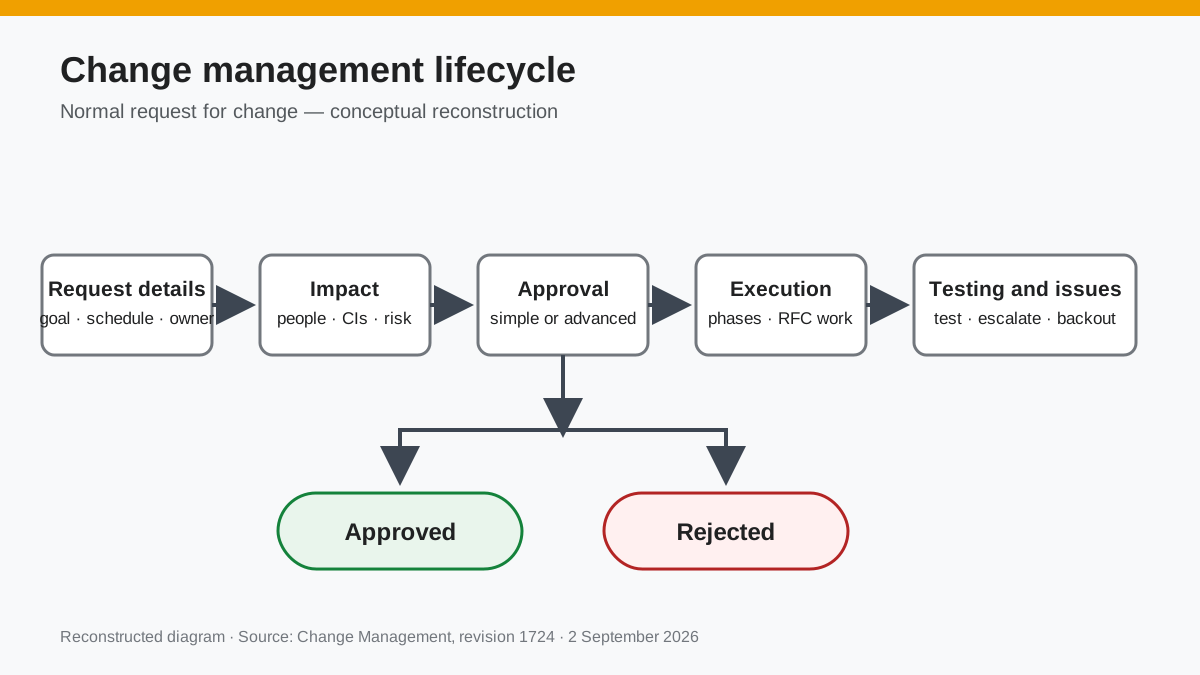
A NRFC lifecycle can be represented as so:
 Documentation image “AddNormalChange_10.png” is unavailable.
 - A NRFC will be auto-rejected at the approval phase if there is no specified or available approver.
Approval Lifecycle
To view, create, and edit an approval lifecycle, navigate to the ITSM bundle, admin gears, and then Approval.
 Documentation image “NRFCApproval_1.jpg” is unavailable.
 Select Normal RFC (or whichever you'd like to view/edit)
- Editing any approval lifecycle will affect the entire space, and all the approvals done under it.
 Documentation image “NRFCApproval_2withAdvanceNew.png” is unavailable.
Simple Approval Type
- Groups all approvers together and requests an approval at the same time from all listed.
- Does not handle advanced functionality such as approval order or multiple processes based off of conditions.
 Documentation image “NRFCApprovalSimple_1.png” is unavailable.
  Documentation image “ChoosingApprover.png” is unavailable.
  Documentation image “ChoosingApproverDotWalkingBetter.png” is unavailable.
 Advanced Approval Type
- Can handle multiple approval stages
- Each stage can have its own set of approval rules and approvers
- More conditional control
The approval flow/lifecycle begins at the Start flow object. Anything that connects to the always condition under it will be the first to start the flow.
 Documentation image “NRFCAdvanced_1.png” is unavailable.
 Underneath an approval, you will see conditions of whether that approval was approved or declined. You can build out different processes depending on whether or not conditions are met.
Your approval area will have options to add an approval or if conditions:
 Documentation image “NRFCAdvanced_2.png” is unavailable.
 Adding and configuring an approval object is the same as the simple approval type, but you can add multiple of them with their own conditions. The if condition can use slot data from the NRFC to decide the appropriate approval path:
 Documentation image “NRFCAdvanced_3.png” is unavailable.
 To tell an approval/if condition where to go, click and drag from their conditions on the bottom, and drop it to the flow object that is appropriate for the next step.
 Documentation image “NRFCAdvanced_4.png” is unavailable.
 Your flow will need to end at one of the two endpoints. Either Approved or Rejected. This will determine the outcome of the entire approval process. In the example below, you can see every path eventually connects to either approved or rejected based off of conditions:
 Documentation image “NRFCAdvanced_5.png” is unavailable.
 Standard Request For Change (SRFC)
- Pre-filled request from a SRFC template to do something generic. Unique info added in SRFC.
- Pre-approved.
- Used for low-risk changes. Usually common, easily repeatable, and already documented steps.
Creating a SRFC Template
Navigate to ITSM Bundle -> Change Standard Templates -> Add new record:
 Documentation image “SRFCTemplate_1.png” is unavailable.
 The configuration is the same as creating a NRFC(goto), but some options such as CIs are not included as the template is generic. You will add this unique information when creating an actual SRFC.
Creating a SRFC
- To create a SRFC, you will need a template. If you do not have one for the change you are requesting, create one.
Navigate to ITSM Bundle -> Change Standard -> Add new record:
 Documentation image “SRFC_1.png” is unavailable.
 Select which template you would like to use. A new slide-out will appear for your new SRFC. It will be pre-filled with the templates already existing information:
 Documentation image “SRFC_2.jpg” is unavailable.
 To fill out the rest of the configuration, refer to NRFC creation as the configuration is the same.
Lifecycle
A SRFC lifecycle diagram:
 Documentation image “SRFC_3.png” is unavailable.
 To view or edit the SRFC lifecycle, navigate to ITSM Bundle -> Bundle Configuration (Admin Gears) -> Bucket Management -> All Lifecycles -> Bucket set to Standard RFC.
Approval Lifecycle
Refer to NRFCs approval lifecycle.
Emergency RFC
- Used for major issues that have already occurred
- Used for fast onsite changes that need to be documented
- Used when change and problem is affecting product or service
- Used for major issues like security threats or power outages that need to be dealt with as soon as possible
Create an Emergency RFC
Lifecycle
Expedited RFC
- No approval needed, used for very low risk changes
- Used for fast onsite testing changes that need to be documented
- Used when change and problem is affecting something that is not apart of a service or product
- Used for minor issues like a test server reboot for a developer
Creating an Expedited RFC
... under construction
Lifecycle
An expedited RFCs lifecycle diagram:
 Documentation image “ExpeditedLifecycleNew.png” is unavailable.
 - Approver is not set by default
Reconstructed diagram
Reconstructed diagram: a conceptual visualization of the process described on this page.